This section of the article describes using the TagMatiks eSeal tag and finding the status of it.
TagMatiks eSeal Tag with RFID Enabled [ https://rfid4ustore.com/tagmatiks-rfid-cable-eseal-tag/ ]
TagMatiks RFID Cable Seal Tag combines mechanical security of standard seals with the electronic security offered by RFID.
The outer shock-proof polystyrene plastic housing of the seal - customizable with mark and numbering on request – embeds a unique electronic chip that has its own unique code which cannot be replicated. This allows for secure and reliable automatic identification of the seal applied to containers.
Use Tagmatiks Wedge to identify the status of the eSeal RFID Tags. You need to configure it in Filter Configuration.
Follow the below mentioned steps
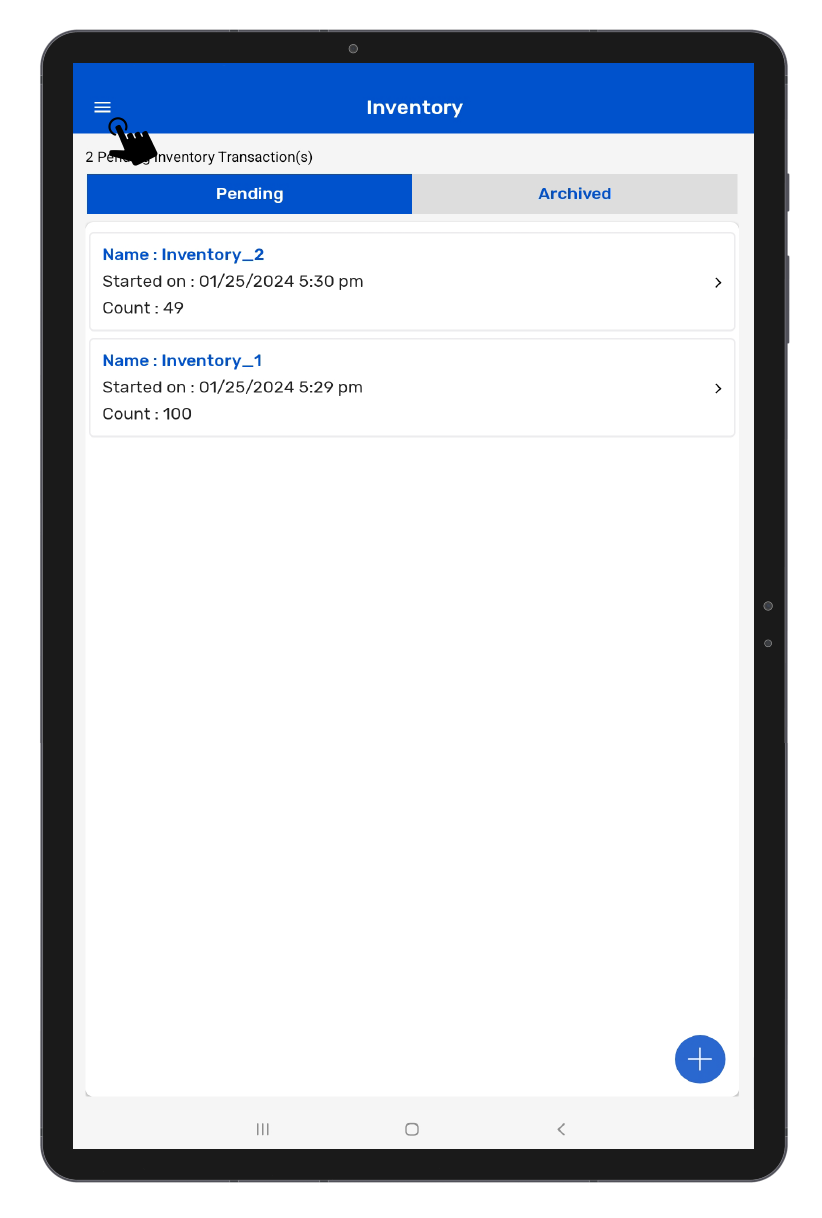
• Open TagMatiks Wedge Application and log into it.
• Tap on the upper left corner of the screen.
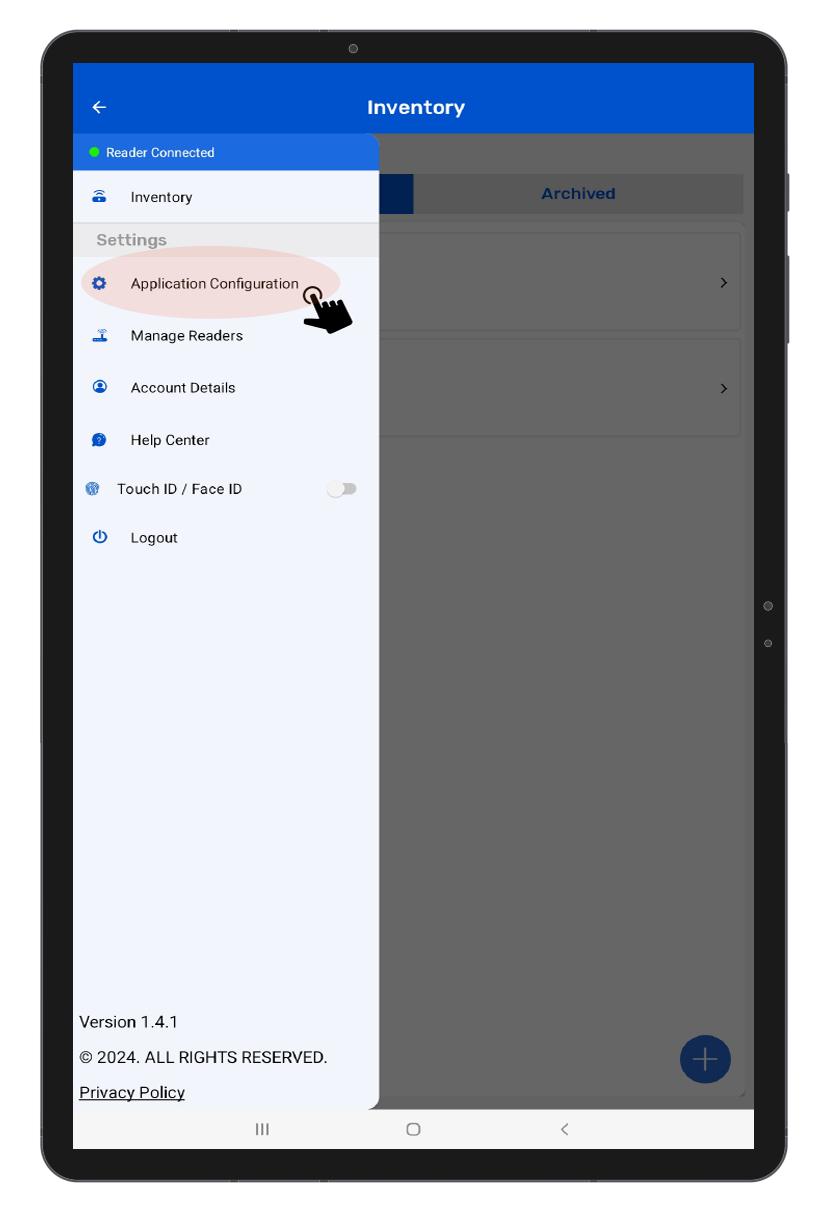
• From the options select the App Configuration.
• Tap on Filters.
• Tap on Sensors ,from there you can select Sensor Type as eSeal Detection, then save the configuration by clicking on the save button in the navigation configuration.
In the inventory screen, click on Scan to scan the tags, after that any one of the scanned tags. It will display the status of the eSeal tag in the sensor type section.